Evinco Knowledge Sharing Column Blog

Archive for the ‘AntiVirus / Security’ category

USB Safeguard enables you to encrypt and password protect sensitive data on your USB drive.

This is a free protection tool for your USB drive. You can select the folders to be encrypted in your USB drive and set a password to protect it. USB Safeguard uses 256-bit AES encryption to protect the data. You don’t need to install the software in your machine, it runs directly from your USB drive.

There are other features which enhance the security of your USB drive.
- delete the original files with the builtin file shredder
- run Internet Explorer without leaving any Internet traces/history on the computer
- provides on-screen keyboard for secure password input

Download this freeware from
http://usbsafeguard.altervista.org/

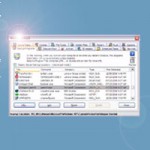
WinPatrol is a freeware which gives you a better understanding of what programs are added to your machine.

It monitors important system areas that are often altered by malicious programs and alerts you if it detects any changes. The areas being monitored includes registry, startup folder, scheduled tasks, services, Add-Ons in Internet Explorer, and ActiveX Controls. It will provides alert or notification when the system areas is changed.

WinPatrol also provides other tools to manage your processes and other system areas. It permits you to remove programs from the start menu and active tasks with the option to kill the task. It will list any IE helpers installed, any scheduled tasks, and file associations with the option to remove an item or revert a change. You can terminate processes and manage the startup programs. It will also list the cookies (in Internet Explore or Firebox) in your machine and you can cleanup the cookies based on a keyword search.

Here’re some of the advanced features:
- Remove and Disable Startup Programs
- Manage IE Helpers
- Monitor Scheduled Tasks
- Manage Services
- Remove Active Tasks
- Expose Hidden Files
- Cookie Management and Filtering
- Monitor and Restore File Types

There is also a paid version WinPatrol Plus which provides some additional features and online support.

Further information can be found in
http://www.winpatrol.com/

VirusTotal Virus Scan

VirusTotal is a free online virus and malware scanning tool. It analyzes suspicious files and facilitates the quick detection of viruses, worms, trojans, and all kinds of malware detected by antivirus engines.
This online scanning tool can scan your file against multiple antivirus engine.

The unique features provided by VirusTotal
- Free, independent service
- Use of multiple antivirus engines
- Real-time automatic updates of virus signatures
- Detailed results from each antivirus engine
- Real time global statistics

You can simply upload the file into the website, it will scan your uploaded file against multiple anti-virus engines.
The antivirus engines includes AVG, Avira, Comodo, Eset, F-Secure, Kaspersky, McAfee, Symantec, Trend Micro and many others.

The detection rate afforded by the use of multiple antivirus engines is far superior to that offered by just one product. But you should keep in mind that this is a on-demand services which cannot protect your computer directly.


ERUNT (Emergency Recovery Utility NT) is a registry backup and restore utility for Windows.

The standard registry backup options provided with Windows only back up most of the registry but not all of it.
Some registry settings will not be back up by the Windows. ERUNT allows you to keep a complete backup of your registry and restore it when needed.

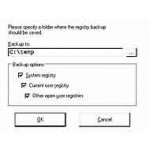
ERUNT is simple and easy to use. There is no fancy interface, and the only choice to choose is the location of your backup. You choose your backup location and ERUNT will make a complete set of registry backup. Another important feature is the backup set includes a small executable that will launch the registry restore if needed.

ERUNT features include:

- Backup the Windows NT/2000/2003/XP registry to a folder of your choice

- System and current user registries selectable

- Command line switches for automated registry backup and restoration

- Included in this package: NTREGOPT program for optimizing the registry

- All programs in this package are completely localizable.

This freeware can be found in

http://www.larshederer.homepage.t-online.de/erunt/index.htm


1. Scan Your Hard Disk

ScanDisk is a builtin tool in Windows which detect and fix any potential damages in your hard disk. It can improve the hard disk reliability and performance.

2. Scan for Viruses

Computer Virus may runs different processes which can slow down your machines. Removing virus not only protect your machine but also improve the overall performance of your machine.

3. Check for Spyware and Adware

Spyware/Adware are similar to virus. They may run different processes to monitor your machine or display advertisement. Removing Spyware can definitely improve the speed of your machine.

4. Defragment Your Hard Drive & PageFile

The scattered data in your hard disk will increase the read/write access time. Defragmentation will rearrange your data in sequential order which can improve the overall speed. Defragmentation should also be run against the PageFile in Windows. There are some freeware which allows you to defragment PageFile.

5. No “Run on Startup”

Run the software on startup is useful. But it also takes up machine’s resources. Check if any software is no need to run on startup and stop it.

6. Uninstall Software

Uninstall unused software can speed up machine’s performance. It can save the hard disk space and also reduce the size of registry.

7. No animation/visual effects

Windows XP provides many visual effects on menus or the desktop. For example, the fading effect of menu. You can stop those visual effects to speed up the machine.


TrueCrypt is an open-source encryption software that enables you to create a virtual encrypted disk within a file and mount it as a virtual disk, that can be accessed via a drive letter. Any file that is stored on this virtual drive is automatically encrypted on-the-fly, and can only be accessed while the drive is mounted with the correct password or key. TrueCrypt supports a variety of encryption algorithms, including AES-256, Blowfish (448-bit key), CAST5, Serpent, Triple DES, and Twofish. Other features include support for FAT32 or NTFS formatting, hidden volumes, hotkeys for mounting/dismounting and more.

It has the following main features:

- Creates a virtual encrypted disk within a file and mounts it as a real disk.

- Encrypts an entire storage device such as USB flash drive or hard drive.

- Encryption is automatic and real-time.

- Encryption algorithms: AES-256, Serpent, and Twofish.

TrueCrypt can be found in following URL

http://www.truecrypt.org


1. Install Anti-Virus and Anti-Spyware

This is a must for your computer security. Anti-virus software scan your computer and also any files load into your machine. It not only protect you from the online threat but also offline, like USB disk. It is also important to keep your anti-virus or anti-spyware software up-to-date.

2. Install Firewall

Firewall is important as it block the access to different ports of your computer. It can block from the hacker access.
You can install a personal firewall or use the Windows builtin firewall.

3. Keep Windows Updates

Windows always release different patches to reinforce the system security. You can go to Windows Updates and get free Microsoft Windows updates.

4. Install Trusted Software

Always download the software from the publisher website and check if the downloaded software has any security certificate before installation.

5. Turn Off Unnecessary Processes

In your machine, there are many programs run in background. If these programs has any security holes, your computer may expose to the hacker. You should shutdown those unnecessary processes to avoid any unknown threat. This can also improve your computer efficiency.

6. Disable Guest Account

Guest account is a good starting point for others to break into your machine. If you dont need it, disable it in your Windows.

7. Plug a Router

Plug a router between your machine and Internet can protect your machine by hiding your IP address to the internet.
Hacker needs to hack into your router and find out the IP address of your machine first before accessing your machine. This can greatly reduce the chance from hacker access.

8. Backup

Backup process is another must for your computer. In case your machine is corrupted, you still can recover from your backup data and put them into work again.


Do you know what exactly starts with your computer during startup?

Starter is a startup manager, that allows you to view and manage all the programs that are starting automatically whenever Windows boots. It also shows you detailed information about the startup items, as well as services and running processes.

You can view the processes running and vary the priority or terminate a process. It lists all the hidden registry entries, as well as the common Startup Folder items as well. It also allows you to export and import various start up configurations depending on what you may want to do when you turn your computer on.

It lets you disable (and re-enable) dubious programs, so you can use trial-and-error if you are not sure, then you can permanently remove them. You can choose to safely disable selected entries, edit them or delete them altogether. Expert users can even add their own entries.

Starter can be found in following URL:

http://www.snapfiles.com/get/starter.html


1. If you are using Windows XP, always turn on the firewall.

2. Run anti-virus program everyday.

3. Run anti-spyware/adaware once a week.

4. Apply latest updates & service packs. Not only for Windows, but also for other software.

5. Run defragmentation, disk clean up, registry scanner once a week.

6. Turn on the pop-up blocker in your browser.

7. Never open email and its attachment that from sender you do not know.

8. Avoid receive file via instant messenger services. Receive file from email is a better way as most of the email services has virus checking.

9. When downloading files from internet, ensure the file are downloaded directly from the publisher.

10. Perform virus scan first before opening any files in external devices, liks USB.


The medium chosen for backing up data depends on the volume of data, and also the nature of the data.

CD: The most common type of media backup used is CD-R and CD-RW. The first one is cheap but you will use a lot of them for a full backup because they hold only 650 MB of data. The second is more expensive but has the ability to be written on again and again. It is a good choice for obtaining backups, and is one of the favourite choices in both domestic and corporate spheres. It is cheap, portable and compatible with several file formats.

DVD: DVD is a good choice for backing up data. It may not be as cheap as the CD, but offers better quality, and has more space. It can hold around 4GB of data. DVD supposed to be last longer than CD.

USB Devices: These are the new favourites all over the world. The storage space of flash drives is constantly increasing. The common storage space of USB device is 4GB, 8GB and 16GB now. And the price of USB device drops rapidly. It does not require a separate software or booting up of the machine to start functioning, and it is very convenient to share the data stored on them.

External Hard Drives: For larger data storage requirements, external hard drives are excellent solutions. Arrays or stacks of hard drives are available for corporate purposes. Several hundreds gigabytes (e.g. 320GB or 500GB) is common size for hard-drives. You can even find 1 TeraBytes hard drives now.

Online and Offline Storage Spaces: These are “spaces” provided by professional firms, and are extremely secure for sensitive data storage.
But you need to rely on the provider services. The quality and security are all depends on the services provided by the company.