- Provides Innovative Business Software
PhotoX Batch Watermark Software
PhotoX
Download Free Trial
Buy Now
Release History
Q&A
How-to
User Guide
PhotoX User Guide
[Download PDF Version]
Preview & Stamp Watermark
Preview
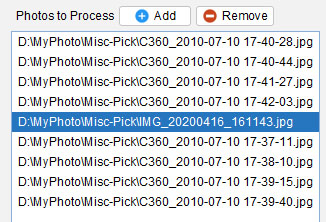
Highlight the photo to preview with your mouse.
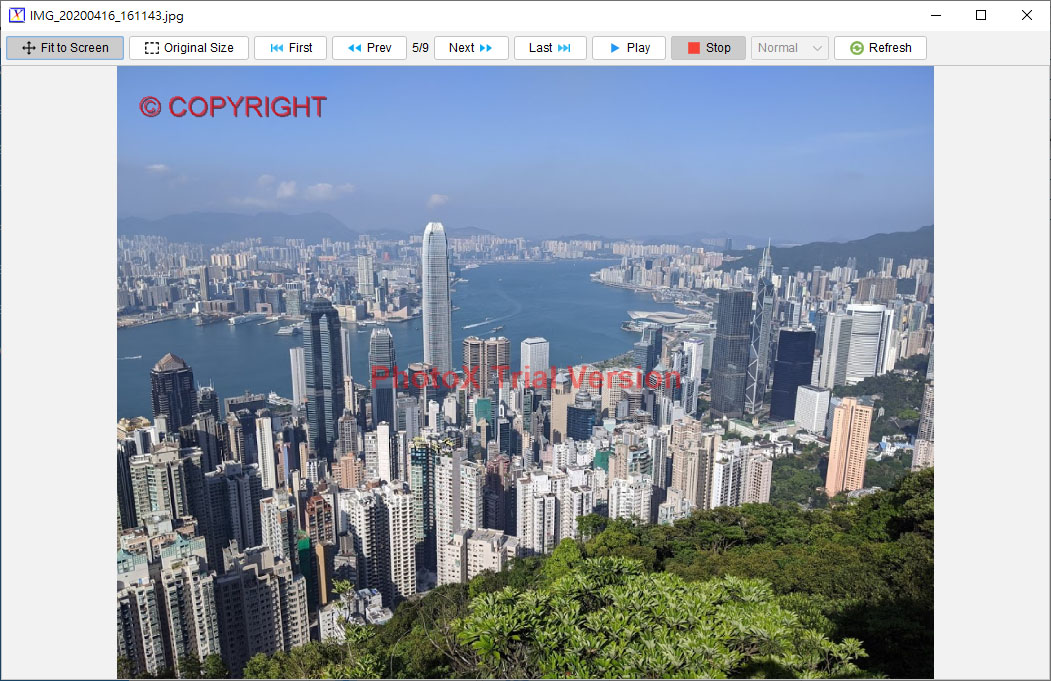
Click the [Preview] button at the bottom.
A preview window is popup. You can switch between "Fit to Screen" and "Original Size" modes.
Stamp Watermark
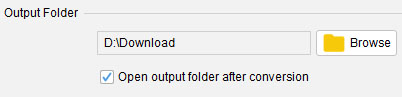
After select your photos and prepare the watermark, you need to specify the output folder. Click [Browse] button to locate your output folder.
Click [Add Watermark] button at the bottom.
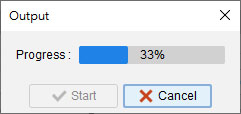
A "Output" dialog is popup.
You can click the [Start] button to start the output process.
Introduction
License
Installation
Using PhotoX
Main Screen
Prepare Watermark
Add File to Process
Preview & Stamp Watermark
Apply Multiple Effects
Set Password
Default Folder
Watermark Wordings
UI Zooming
Registration
Register
Trouble Shooting
Resolve "Database Locked"
 - Provides Innovative Business Software - Provides Innovative Business Software - Provides Innovative Business Software