
You bought a thermal printer to speed up your checkout. It’s supposed to be fast, ink-free, and professional.
But when you try to print a receipt from Excel, Word, or a standard PDF generator, it’s a disaster. The text is microscopic, the margins are huge, and the printer spits out a foot of blank paper after every sale.
Why is this happening? It’s not your printer’s fault. It’s because Excel and Word were designed for A4 sheets, not continuous thermal rolls.
Here are the 4 main reasons why you need dedicated software like Quick Receipt to unlock the full potential of your thermal printer.
- The “Fixed Page” vs. “Continuous Roll” Problem
Excel and Word think in “Pages.” They expect a piece of paper to be 11 inches long.- The Excel Problem: If your customer buys 20 items and the list gets long, Excel will force a “Page Break.” It will cut the receipt in half and print a huge gap in the middle of your item list.
- The Thermal Solution: Dedicated software like Quick Receipt treats the paper as endless. Whether a customer buys 1 item or 50 items, the software dynamically adjusts the length of the receipt to fit exactly what is printed. No page breaks, no wasted paper.
-
The Margin Trap on 58mm Paper
Thermal paper is narrow—especially the 58mm size. Every millimeter counts.- The Excel Problem: Most standard programs have “minimum print margins” (usually 0.5 inches or more). On a tiny thermal receipt, these margins eat up 30% of your printable space, squishing your text into an unreadable column in the center.
- The Thermal Solution: Quick Receipt is engineered for Zero-Margin printing. It utilizes the full width of the thermal head, ensuring your product names, prices, and totals are large, bold, and easy to read, even on the smallest paper size.
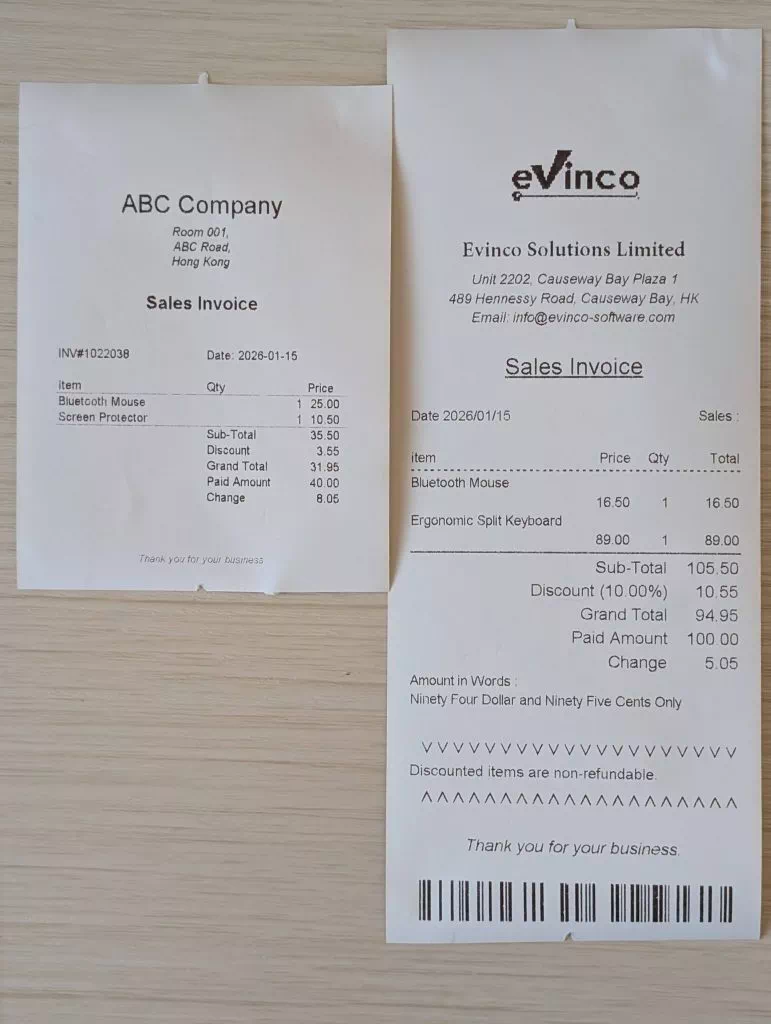
Printed with Excel Template (Left) vs Quick Receipt (Right) -
Controlling the Hardware (Cash Drawers & Cutters)
Your thermal printer likely has a port on the back to connect a Cash Drawer.- The Excel Problem: Excel is just a spreadsheet; it cannot “talk” to your hardware. When you hit print, your cash drawer stays locked. You have to use a key to open it manually every time.
- The Thermal Solution: Quick Receipt sends specific ESC/POS commands directly to the printer. This means you can configure the software to automatically kick open the cash drawer the moment a receipt is printed. It also triggers the auto-cutter at the exact right spot.
-
Ink vs. Heat: The Clarity Issue
Thermal printers don’t use ink; they burn images onto the paper using heat.- The Excel Problem: Colored logos or grayscale shading in Excel templates often print out as muddy, invisible blobs on a thermal printer.
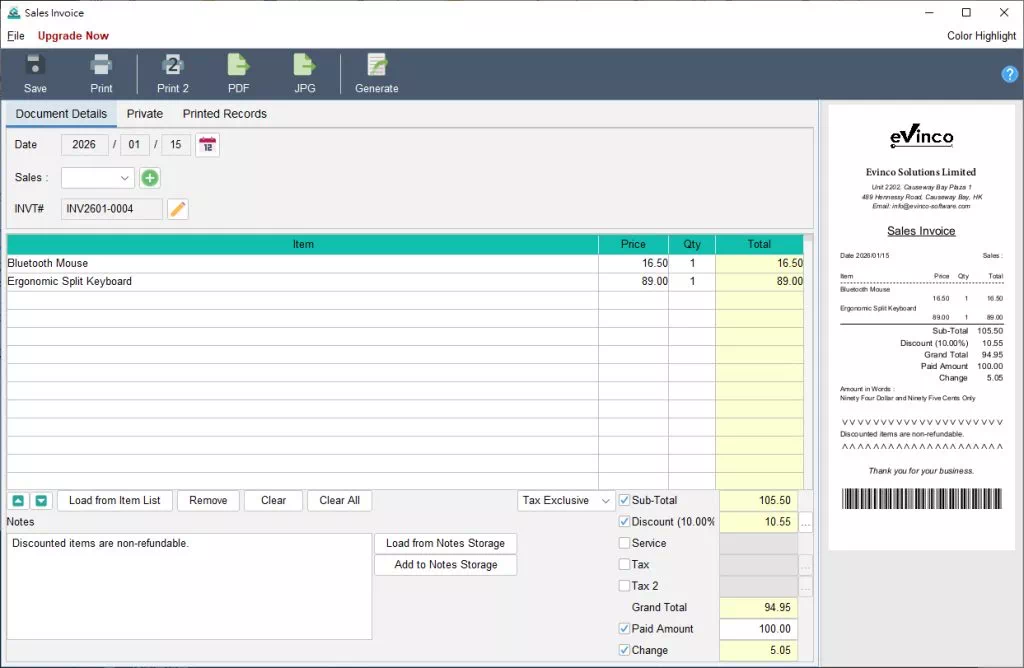
- The Thermal Solution: Quick Receipt’s design engine converts your logo and layout into high-contrast monochrome (black & white) optimized for thermal heads. Your logo looks crisp, and barcodes/QR codes are sharp enough to be scanned instantly.
The Verdict: Use the Right Tool for the Hardware
You wouldn’t use a hammer to turn a screw. Similarly, you shouldn’t use a spreadsheet to drive a thermal printer.
If you are tired of fighting with page breaks, tiny fonts, and locked cash drawers, it’s time to switch to software built for the job.
Quick Receipt supports all major thermal printers (58mm and 80mm) and solves these formatting headaches instantly.
Download the Quick Receipt Free Trial and test your Thermal Printer today
https://www.evinco-software.com/eng/quick-receipt-software-for-thermal-printer.php