
How to Organize Document with Color Highlighting feature?
In Quick Receipt, you can use color highlighting to visually mark and identify important documents that require attention.
Highlighting from within a Document
- Open the document you wish to highlight.
- Click the “Color Highlight” menu in the top-right corner.
- Choose one of the five available colors: Yellow, Red, Orange, Blue, or Green.

- Click [Save] to save the document with the new color highlight.

On the main document list screen, you will now see the document marked with the color you selected.
Highlighting from the Document List
- In the main screen, select the document you want to highlight from the document list.
- Right-click on it.
- In the pop-up menu, choose the “Color Highlight” option.
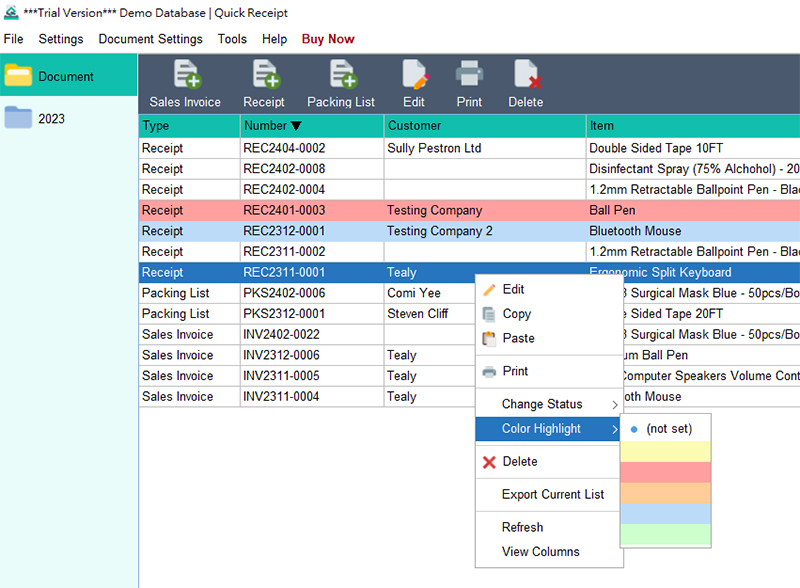
- A submenu will appear, allowing you to select a different color.

Filtering by Color
To view only the documents with a specific color highlight, use the Advanced Search feature:
- In the Advanced Search dialog, select the desired color from the options.

- Click the “Search” button to filter the list. The results will display only the documents with that color highlight.

Prefer to Watch? See the Full Tutorial Below
This video covers all the details mentioned in the article, giving you a complete visual walkthrough from start to finish.
Video Tutorial: Organzie Document with Color Highlights