Sales Invoice

Icon Bar and Preview Screen
At the top of the Sales Invoice screen, you’ll find the Icon Bar, offering convenient functions:
- Save – Save the current invoice
- Generate – Generate a packing list from the current invoice
- Print – Print the current invoice. Click the dropdown button to choose Print Two Copies
- Mail – Mail the current invoice as PDF. Click the dropdown button to choose Mail as JPG
- Export – Export the current invoice into PDF or JPG
The preview screen is located on the right-hand side and will automatically refresh whenever changes are made to the invoice.
Main Tabs
The screen is divided into three main tabs: Document Details, Private, and Printed Records.
-
Document Details
This tab allows you to prepare the sales invoice. The document number is automatically assigned based on your settings. Here, you can specify the date, enter customer and item information.
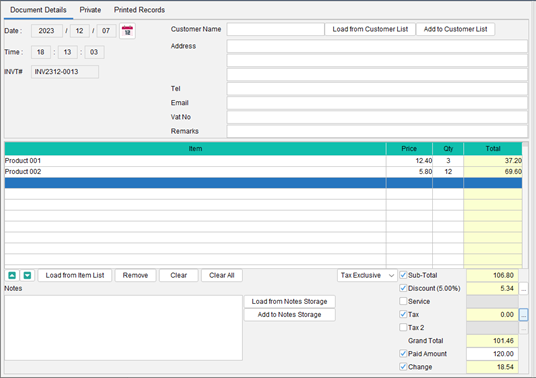
To add items, simply click the [Load from Item List] button below the item table, which can load information from the Item List. Configurable options such as discount, tax, and tendered can be enabled or disabled. To input a discount or tax, click the […] button on the right, allowing you to enter either a percentage or a value. Total and other relevant fields will be automatically calculated.
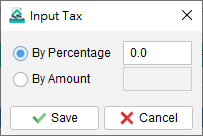
Please note that the layout and fields may vary depending on your individual design preferences of the document.
-
Private
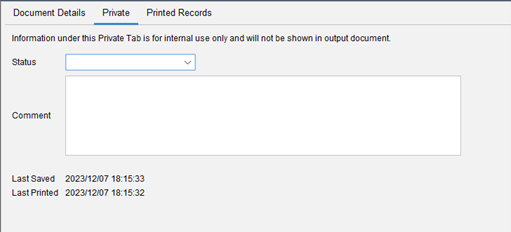
In this tab, you can set the document status and add private comments. Any information entered under this tab will not be displayed in the output document.
-
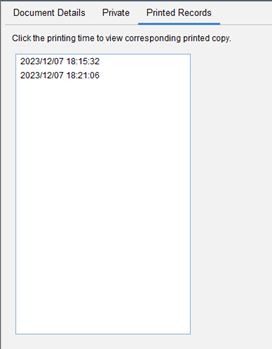
Printed Records
Whenever a document is printed, a copy is saved, and those copies are listed in this tab. By clicking on the printing time, you can access the related printed copy for reference.