
Why are layout changes not showing on the printout?
The changes made to a cheque layout (like moving text) are not reflected on the printout. It looks exactly the same as it did before. Why are the changes not showing?
This issue almost always happens because of a layout mismatch. In ChequeSystem, every chequebook is linked to a specific layout. If you are editing Layout A, but your chequebook is still set to use Layout B, your printed cheques will not show your recent changes.
To fix this, you just need to verify which layout your chequebook is currently using and update it to the correct one.
Step 1: Identify your updated layout
Go to your layouts and find the one you have been editing.
Temporarily rename it to something obvious, like “My Bank (Testing)”. This makes it much easier to find in the next steps.
Step 2: Update your Chequebook Settings
- On the top menu, go to “Management > Chequebook Management”.
- Select your current chequebook and double-click on it to open the settings.
- In the pop-up dialog box, look for the Layout field.
- Click the dropdown menu and select the layout you just renamed (e.g., “My Bank (Testing)”).
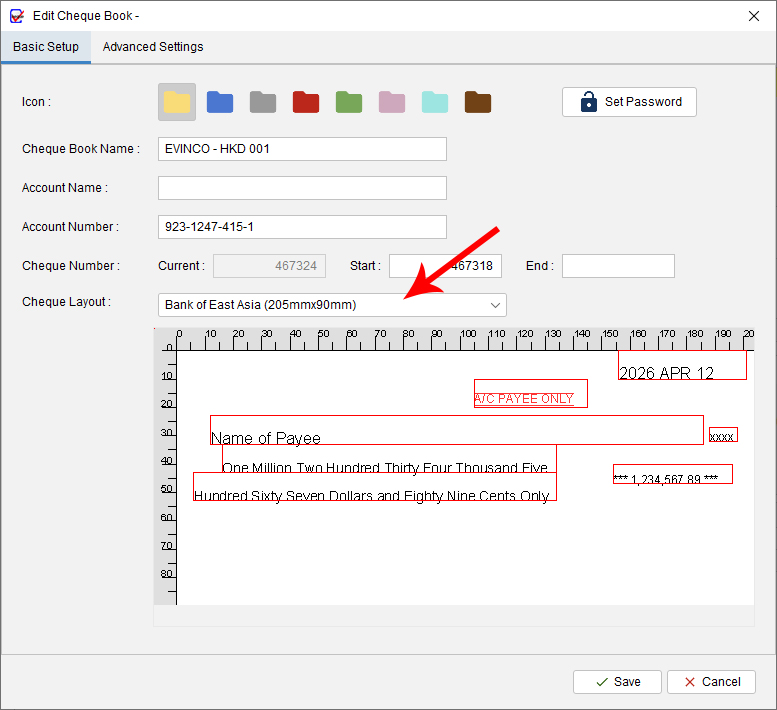
- Save your settings.

Try printing your cheque again. Your recent changes should now appear perfectly on the printout!