
Cheque Layout Guide: How to Measure & Create in 3 Steps
Quick Summary: How to Create a Custom Cheque Layout
To set up a custom cheque layout, measure the physical cheque dimensions in millimeters, enter the coordinates into your software, and run a blank test print.
Step 1: Measure the Fields
Use a ruler to find the exact horizontal and vertical distance from the top-left edge of the cheque to each target input field (Date, Payee, and Amount) in millimeters.
Step 2: Input Your Coordinates
Open the Cheque Layout Design Tool in ChequeSystem, create a new template, and input your precise millimeter measurements into the respective placement grids.
Step 3: Run a Alignment Test
Print a sample page on a blank sheet of white paper, overlay it directly on top of your physical cheque against a light source, and apply minor position micro-adjustments if text skews.
ChequeSystem software allows you to create custom cheque layouts to match the specific format of your bank’s cheques. This guide will walk you through the step-by-step process of setting up a new layout for printing.
- Getting Started
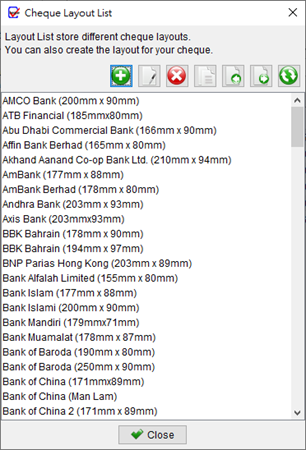
First, you need to access the cheque layout management area to create a new layout.- Go to the main menu and select “Management > Cheque Layout List“.
- A dialog box will appear, showing all your existing cheque layouts. From this list, click the [+] button to open the Cheque Layout window.
-
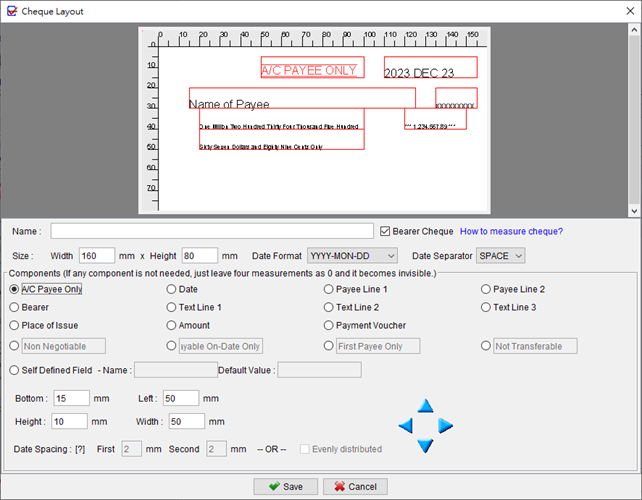
The Cheque Layout window is divided into two main parts. The top half features a preview pane where you can see your design in real-time. The bottom half contains all the configuration settings. Any changes you make will be reflected instantly in the preview.
- Basic Layout Settings
Begin in the section directly below the preview pane to configure the main properties of the layout.- Layout Name: Provide a unique name for your layout. This name will help you identify it when creating a new cheque book.
- Bearer Cheque: Check the ‘Bearer Cheque’ box if this layout is for a bearer cheque. If unchecked, the “Bearer” field will be hidden from the setup.
- Cheque Dimensions: Accurately measure and input the Width and Height of your physical cheque in millimeters. For instance, a standard cheque might be 203mm wide and 90mm high.
- Date Format: Choose a date format and separator that matches the style used on your bank’s cheques.
- Defining Field Positions and Sizes
This is the most critical part of the process. To define the position of each element, use the field selection area located in the middle of the screen. Here, you can click on each field (like Payee, Date, or Amount) to select it and then input its specific measurements.For each selected field, you must provide four measurements:
- Left: The distance from the left edge of the cheque to the left edge of the field.
- Bottom: The distance from the top edge of the cheque to the bottom edge of the field.
- Width: The horizontal space available for the field.
- Height: The vertical space available for the field.
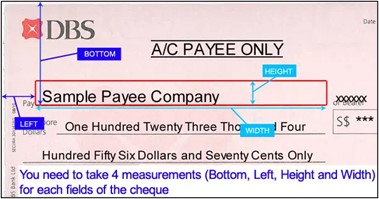
Take these four measurements for every field you intend to use. If a particular field is not present on your cheque, simply set all its measurements to zero to disable it.
- Customizing and Adding Fields
ChequeSystem offers additional flexibility for personalization, with options typically found near the bottom of the configuration area.- Rename Components: You can rename standard terms like “Non-Negotiable” or “Payable On Date Only” to align with your specific requirements.
- Self-Defined Field: Use the self-defined field option to add an extra, custom field to your cheque layout as needed.
- Saving the Layout
Once you have configured all settings and defined the measurements for each field, click the [Save] button at the bottom of the window. Your new layout is now saved and can be selected when you set up a new cheque book for printing.


By following these steps, you can accurately create custom cheque layouts in the ChequeSystem software.
Prefer to Watch? See the Full Tutorial Below
This video covers all the details mentioned in the article, giving you a complete visual walkthrough from start to finish.
Video Tutorial: Create Cheque Layout