
Generate from Other Document
The “Generate from Other Document” feature in Easybilling Invoicing Software enhances the process of creating new documents by offering a streamlined and user-friendly interface. You may generate documents based on existing documents or templates with improved clarity and flexibility compared to previous versions.
To create a new document using an existing document or template:
- Click the [Generate From…] button at the top right corner when creating a new document.

- A dropdown menu will display all available document types.
- Select the desired document type from the dropdown menu.
- The software will display a list of documents matching the selected type for you to choose from.

Updating Source Document
After selecting a source document from the list, you can load its details into the new document. Below the document list, additional options allow you to manage the source document:

- Update Status: Change the status of the source document.
- Color Highlights: Modify the color highlights of the source document.
These options streamline document management by allowing you to update statuses directly during the generation process.
Special Case: Creating a Receipt from an Invoice
Creating a receipt from an invoice is a specific use case of the “Generate from Other Document” feature, offering unique functionality for handling invoices.
Selecting Invoices
When generating a receipt from invoices, you can choose between two modes: “Single Select” and “Multiple Select“, at the top right corner.

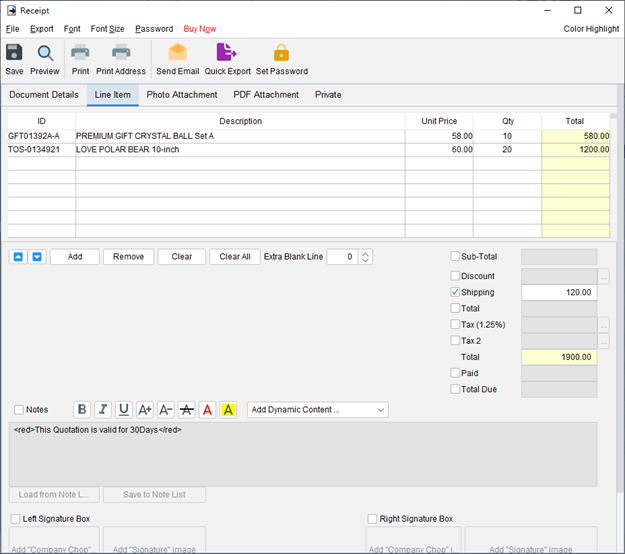
- Single Select: When selecting a single invoice, the software copies all line-item details from the invoice to the new receipt. This ensures the receipt accurately reflects the invoice’s contents.
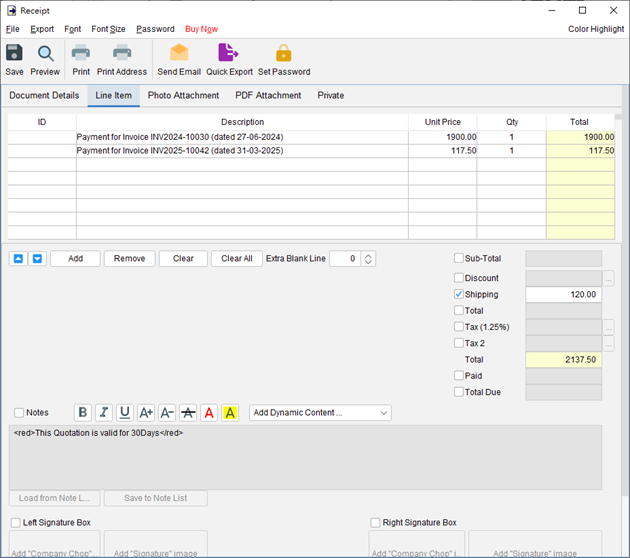
- Multiple Select: When selecting multiple invoices, the software loads a summary about payments received of the selected invoices. For example, if two invoices are selected, the content in the receipt will display as:
Payment for invoice INV001 (dated 27-05-2023) $1000
Payment for invoice INV002 (dated 03-06-2023) $500
This provides a clear, consolidated view of payments for efficient receipt creation.


Recording Payments
In addition to updating the source document’s status and color highlights, you can record payments received for the source invoices. To do so:
- Enable the payment recording option at the bottom of the document list.
- Specify the payment received details:
- Save the payment details to update the source invoices.


This feature significantly improves workflow efficiency by allowing to manage invoice payments directly while creating receipts, ensuring accurate tracking of customer payments.
Prefer to Watch? See the Full Tutorial Below
This video covers all the details mentioned in the article, giving you a complete visual walkthrough from start to finish.
Video Tutorial: Generate from Other Documents