
How to Adjust the Font Size for Documents
The following steps explain how to change the font size for an individual document and how to set a default font size for all new documents in EasyBilling.
Adjusting Font Size for an Existing Document
Follow these steps to customize the font size for a specific document (e.g., an invoice, quotation, or receipt):
- Open the specific document you wish to modify.
- In the document window, locate and click the “Font Size” menu at the top.
- Select your desired size from the list of options, which typically includes: Extra Large, Larger, Large, Medium, Small, Smaller, and Extra Small.

- (Optional) Click the “Preview” button to generate a PDF output preview and see how the new font size looks.
- Click the [Save] button to apply the changes to the document.

Setting the Default Font Size for New Documents
To ensure all future documents you create automatically use your preferred size, set the default font size:
- In EasyBilling, go to the menu and select “Customize Document > Preferences“.
- In the popup window that appears, click the “Font” tab located on the left-hand side.
- Use the options provided to choose your preferred default document font size.
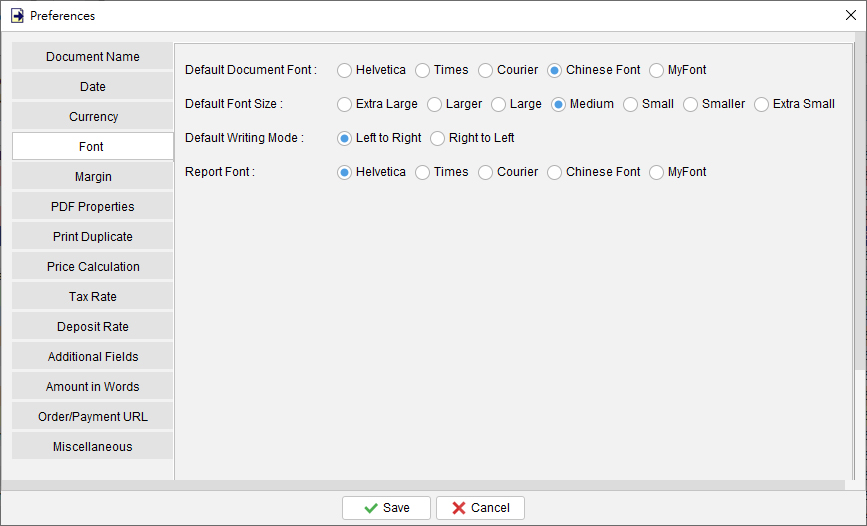
- Click the [Save] button to save this setting.
All new documents created after this step will automatically utilize the new default font size.
