
Setting Your Startup Workspace
EasyBilling allows you to create multiple Workspaces to manage documents for different companies. By default, the software loads the workspace you used most recently.
If you often switch between companies, you can change the startup setting so EasyBilling either prompts you to choose a workspace or automatically loads a specific one every time you start the software.
How to Access Startup Options
- In EasyBilling, go to the menu “File > Switch Workspace”.
- In the pop-up Workspace list, look for the Settings (gear) icon located at the top right corner. Click this icon to open the Startup Options dialog.
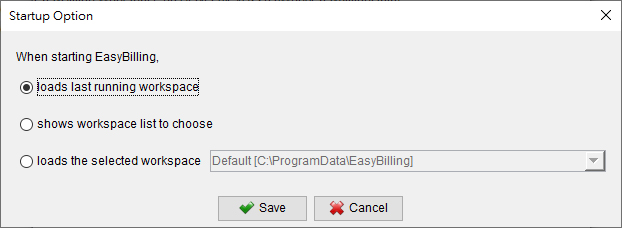

Choosing Your Startup Preference
In the dialog box, you will find three options to customize how EasyBilling starts:
- Load last running workspace (Default): This is the default setting. The software will automatically load the last workspace you were actively using.
- Show workspace list: When you start EasyBilling, the software will display the list of all your configured workspaces, allowing you to manually select which one you want to run.
- Load selected workspace: This option forces the software to always open a single, specific workspace that you designate, regardless of which one you used last. You must select the desired workspace from the list below the options.
Select the option that best fits your workflow and click [Save] to save your changes.