
How to Create Documents from Existing Documents
In EasyBilling, you can create documents from existing documents using two different methods, depending on the scenario:
Creating a document from a different document type
If you need to generate a document, such as an invoice, based on another type of document, like a quotation, you can utilize the [Generate From…] button within the document.
Let’s take the example of generating an invoice from a quotation:
- Start by creating a new invoice.
- Within the Invoice window, locate and click the [Generate From…] button at the top right corner.

- A document list will appear, allowing you to select the source quotation from which you want to load information.
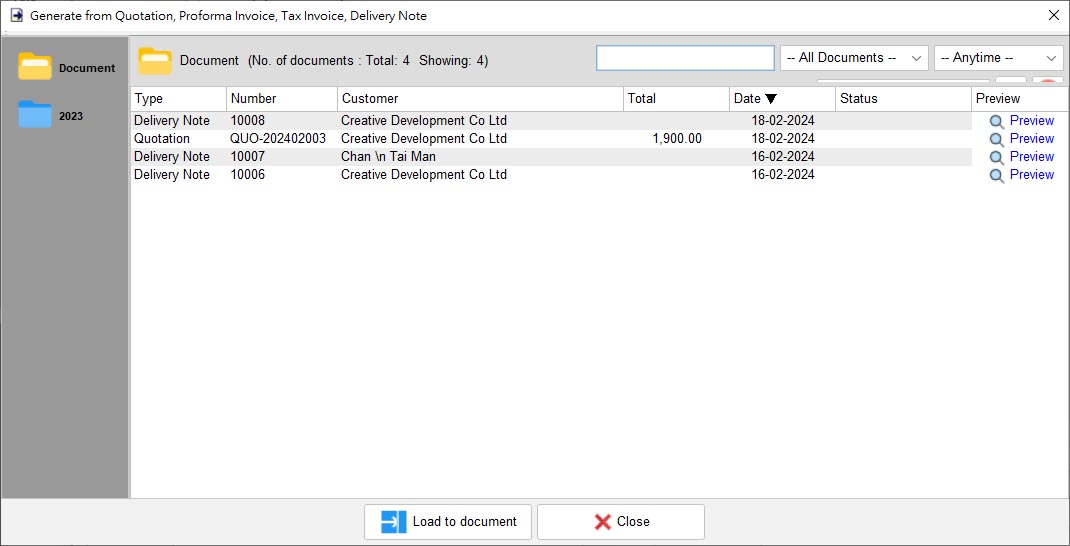
- After selecting the desired quotation, click the [Load to Document] button at the bottom. The information from the quotation will be loaded into the invoice document.

Duplicate Existing Document
If you wish to duplicate an existing document as a new document, you can utilize the Copy and Paste feature in the document list.
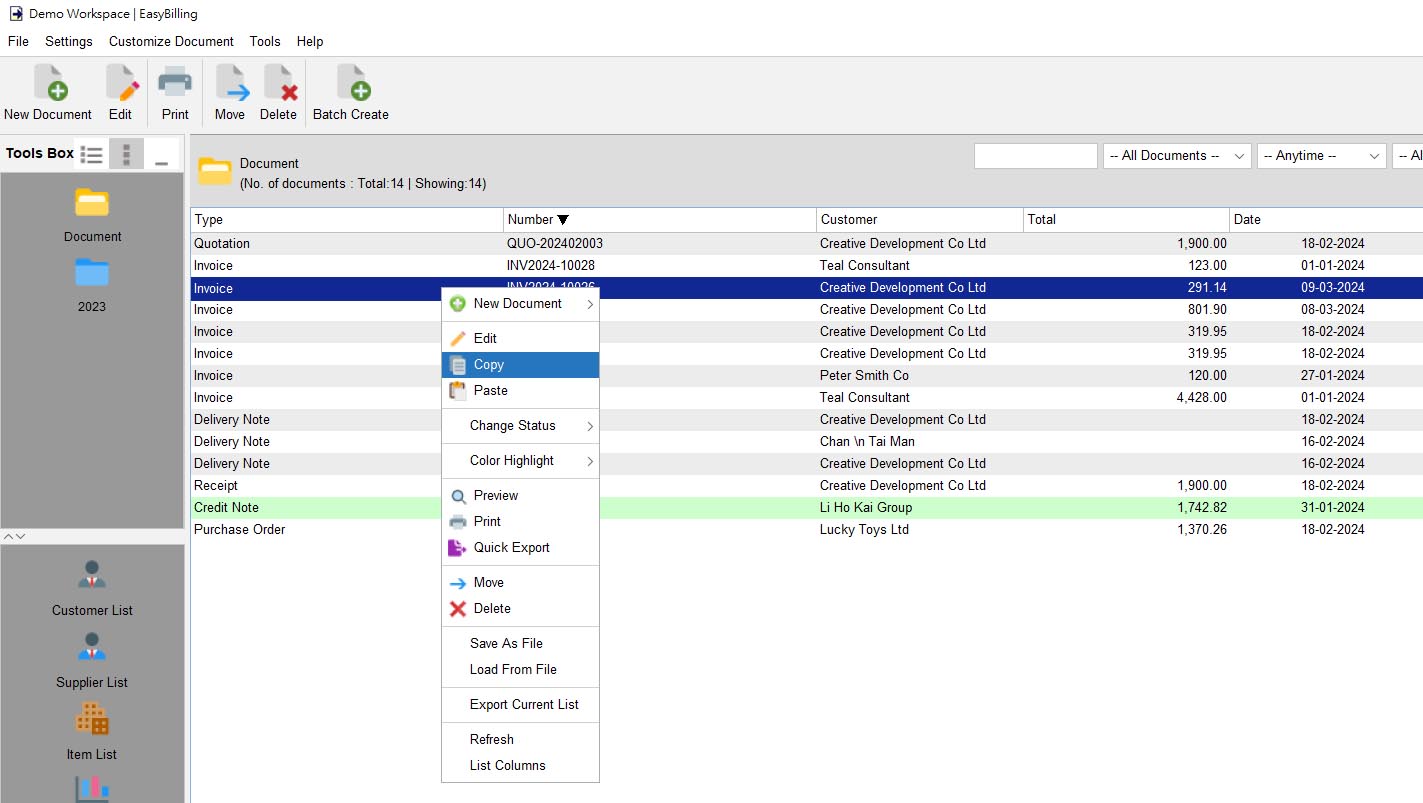
- In the document list, select the document you want to duplicate, then right-click on it.
- From the popup menu, choose the “Copy” option. A brief notification message “Selected document is copied” will be displayed.
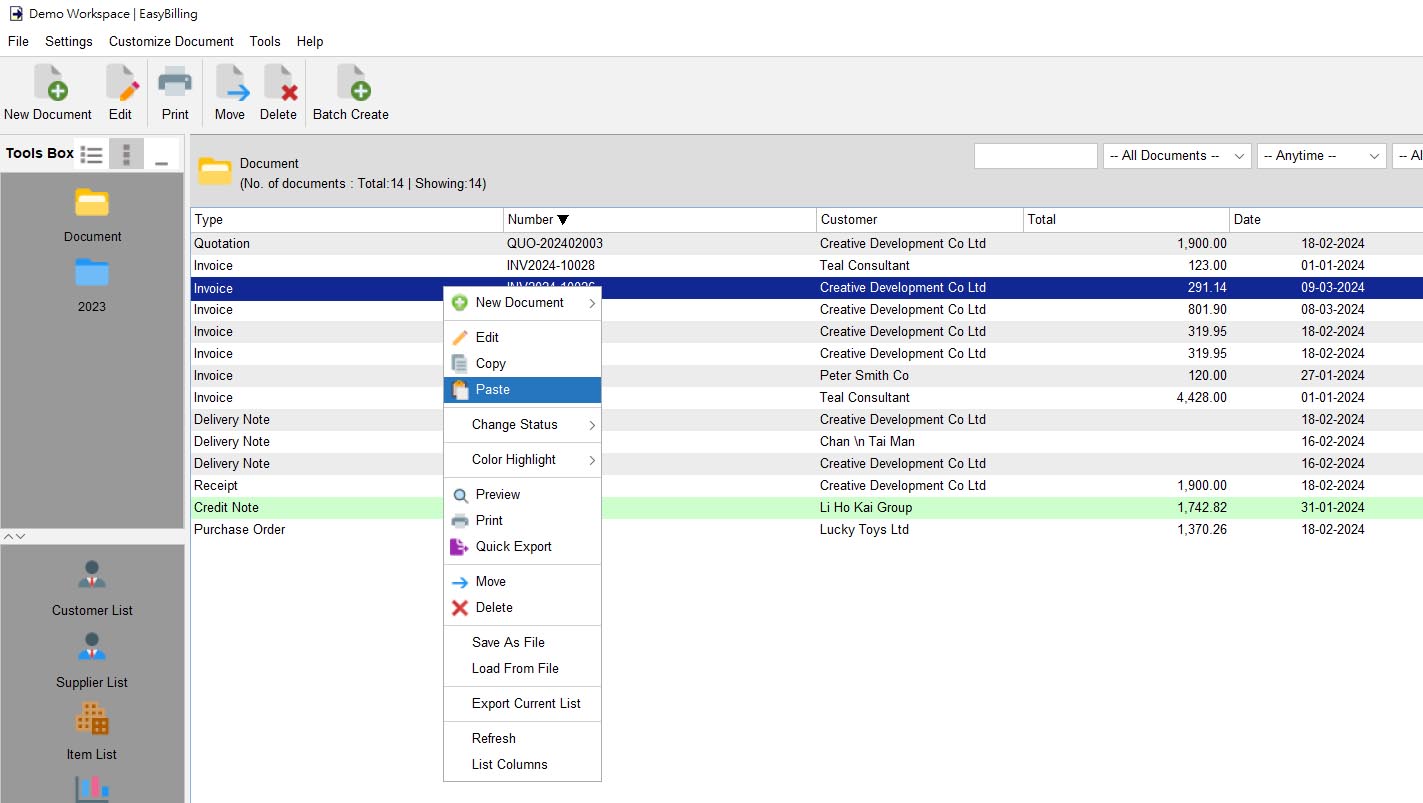
- Next, right-click in the document list again, and select the “Paste” option from the popup menu.
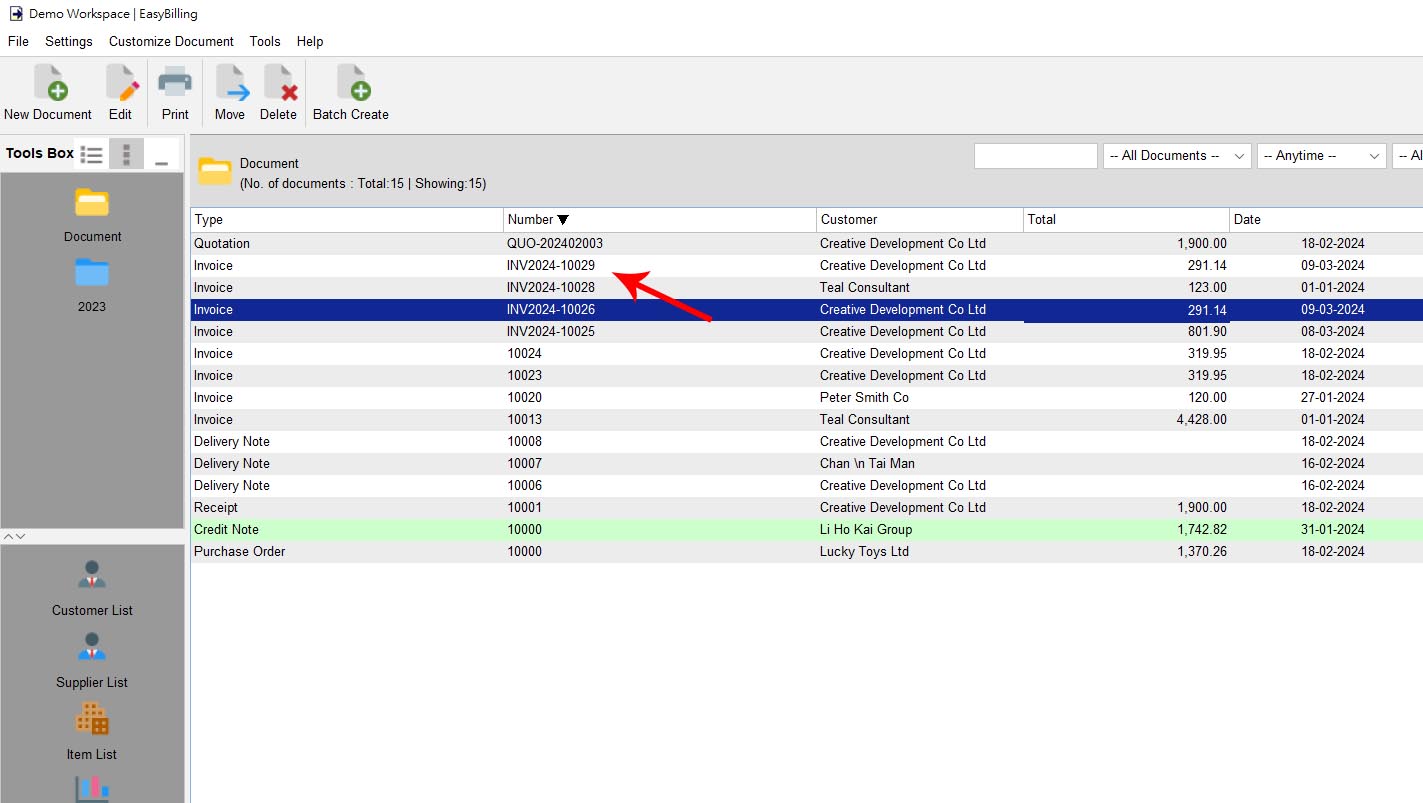
- The document will be duplicated with a new document number assigned.


By using these methods, you can efficiently create new documents from existing ones in EasyBilling.