
Create New Document
- In the “Tools Box” of main screen, select the folder that the new document belongs to.
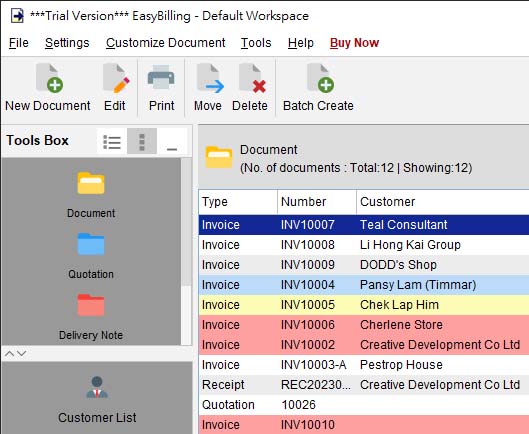
- Click the [New Document] icon in Tool Bar and select the document from the provided list.
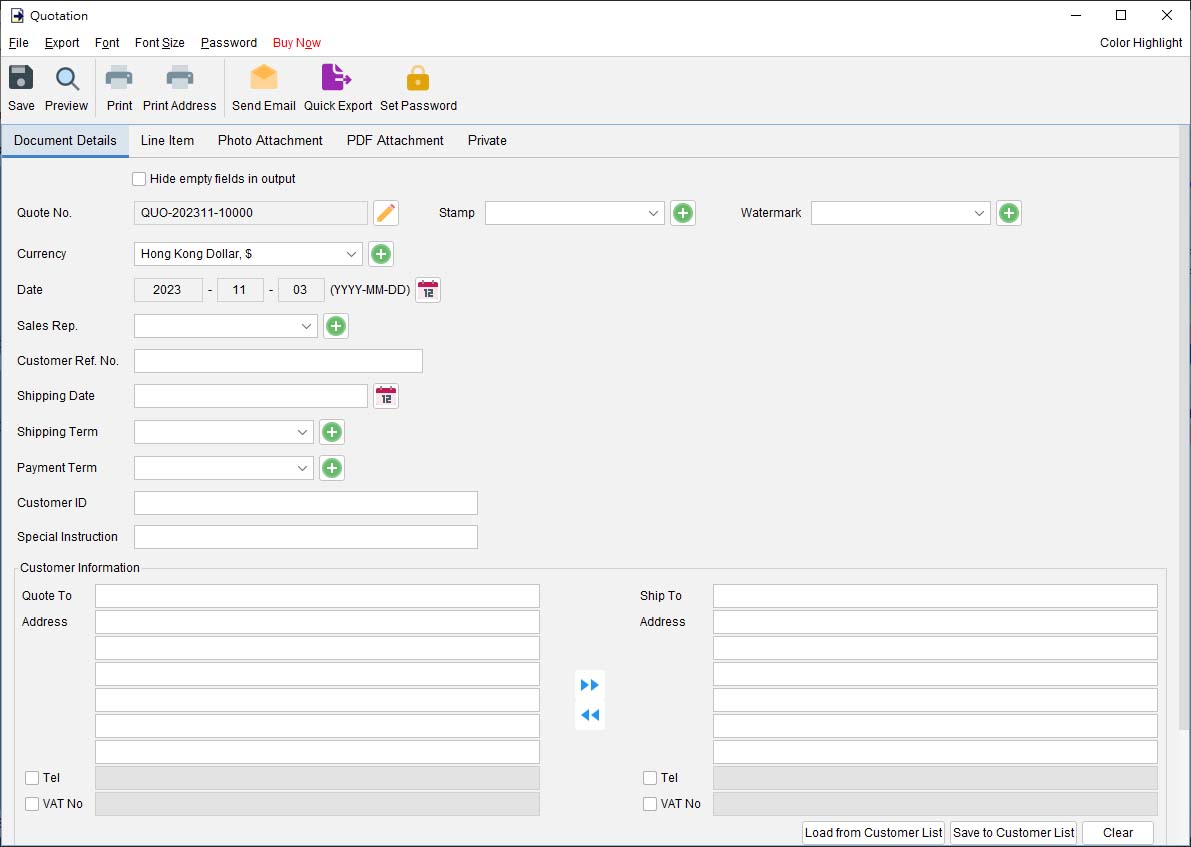
- The document window will be shown. Below is the Quotation window.
-
The document window has few tabs: Document Details, Line Item, Photo Attachment, PDF Attachment, and Private.
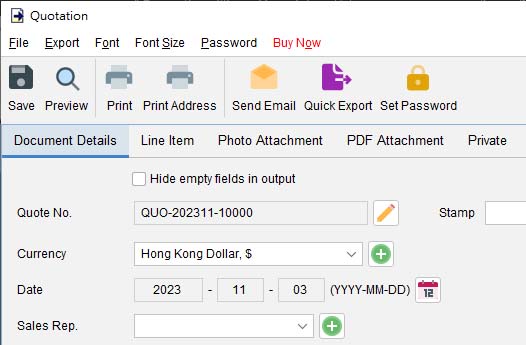
- In the “Document Details” tab, you can specify the general information of the document, like Document Number, Currency, Stamp, Date, Customer Information and others.
The document number will be generated automatically. But you can overwrite and input your preferred number by clicking [Edit] icon.
You can load the customer information from Customer List by clicking the button at the bottom.
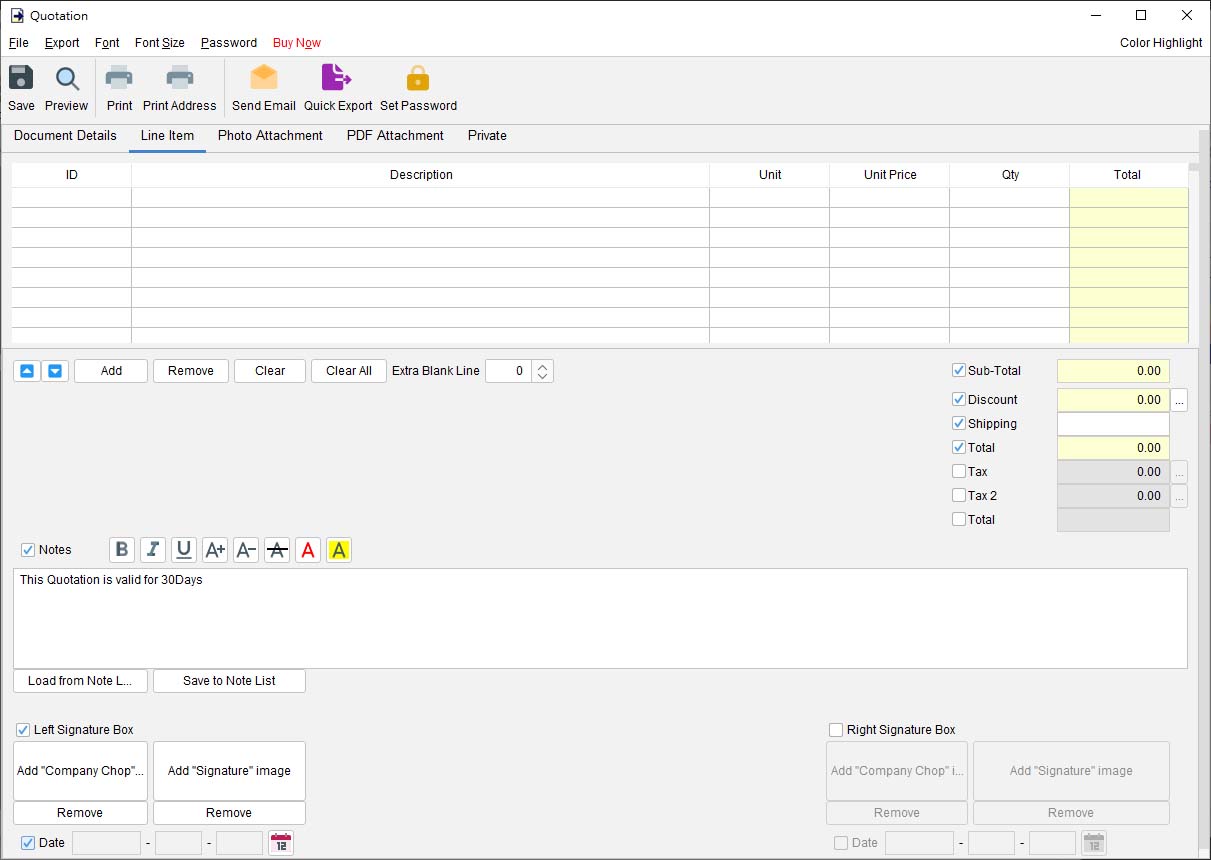
- In the “Line Item” tab, you can specify the item entry, notes and the signature box.
- You may add Photo and PDF Attachment in the corresponding tab.
- When your document is ready, you can click the icon in Tool Bar to save, preview or print your document.


Use “Generate From” to load information from other document
If you want to import data from other documents, like copying details from a quote to an invoice, you may click the [Generate From] button at the top and select the document you want to load the information from.
This can help to save your time and ensure the information is accurately transferred.

For detailed instructions on generating from other documents, please refer to the article Generate from other document.
Prefer to Watch? See the Full Tutorial Below
This video covers all the details mentioned in the article, giving you a complete visual walkthrough from start to finish.
Video Tutorial: Step-by-Step Guide to Create Document