
How to record a payment received?
You can easily record a payment received in EasyBilling for an Invoice or Tax Invoice by following these steps:
- Open the invoice document window or tax invoice document window.
- Locate the “Payment Received” tab within the document window.
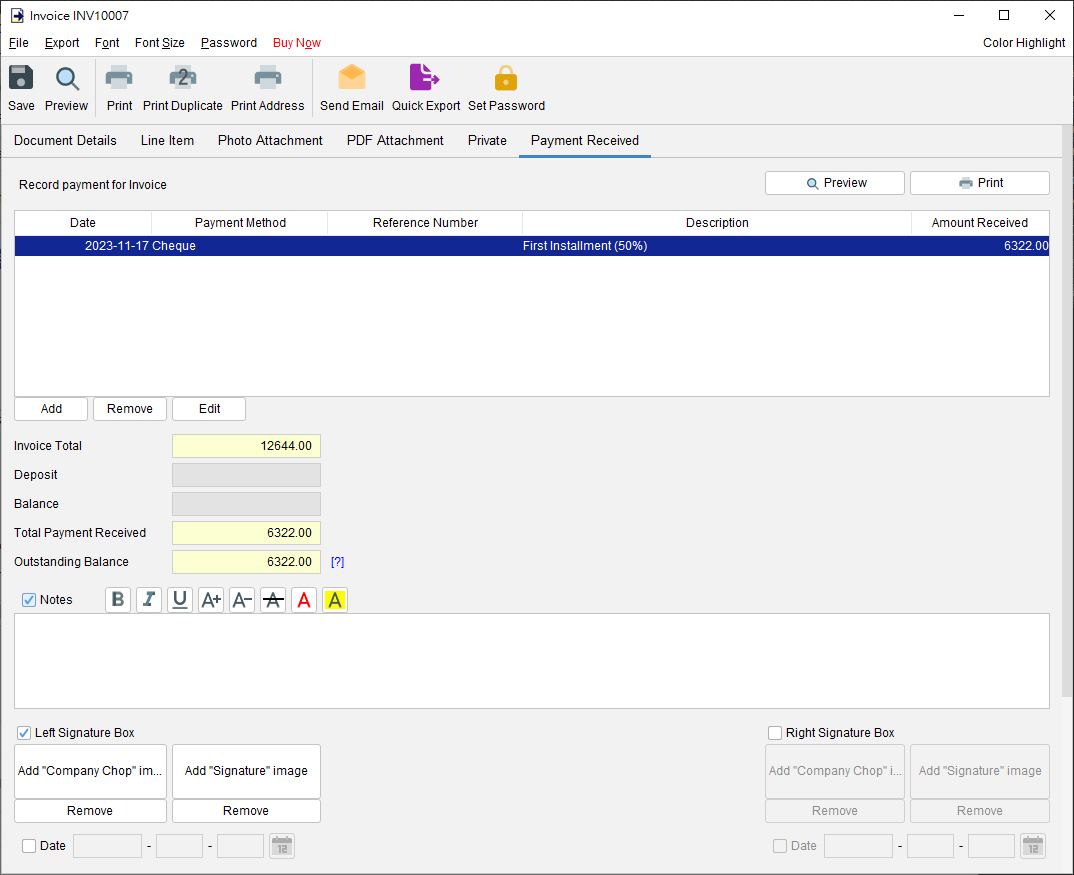
- Click the [Add] button to create a new payment record.
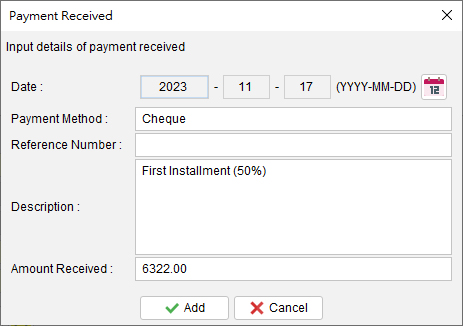
Provide the necessary details for the payment, including the date, payment method, reference number, description, and amount.
- The outstanding balance will be automatically calculated and updated in the table.
- If needed, you can preview or print the payment received record by clicking the [Preview] or [Print] button located at the top right corner of the window.


By utilizing these steps, you can accurately record and track payments received for your invoices in EasyBilling, ensuring a comprehensive overview of your financial transactions.
Prefer to Watch? See the Full Tutorial Below
This video covers all the details mentioned in the article, giving you a complete visual walkthrough from start to finish.
Video Tutorial: Record Payment Received for Invoice